
VerbMaster Teacher Guide
VerbMaster works best when it's paired with consistent routines and clear expectations. This section will give you practical strategies to keep students motivated, accountable, and on track, so you can get the most out of every feature VerbMaster offers.
Students thrive when they know exactly what's expected. A little structure at the start goes a long way toward building lasting study habits.
Having your students complete their assignments is crucial. That's how the verbs get into their brains in the first place. But just as important are their Mastery Reviews.
Students who complete their lessons and consistently bring their reviews down to zero are the ones who crush it, not just on quizzes, but on long-term retention and overall fluency.
On the REVIEW tab, the number of reviews they have due sits at the top of the screen. Their goal is simple: always get that number down to zero.
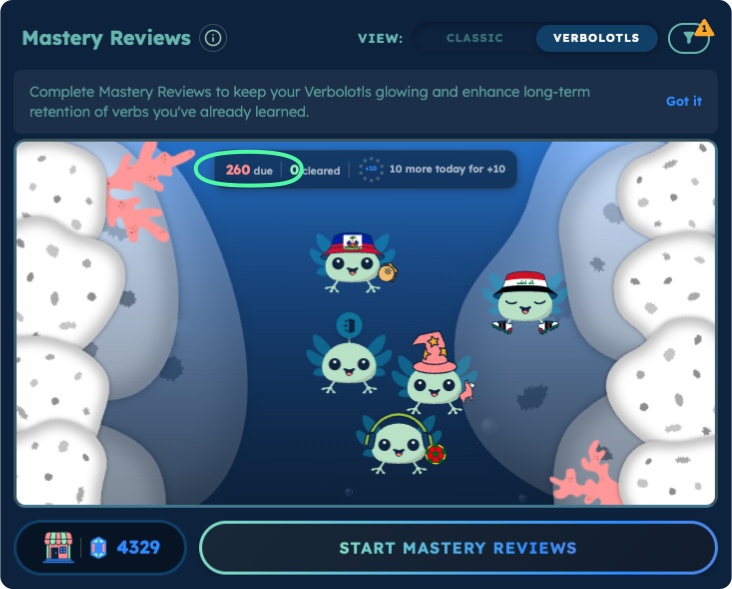
You can see the same number from your side in two places.
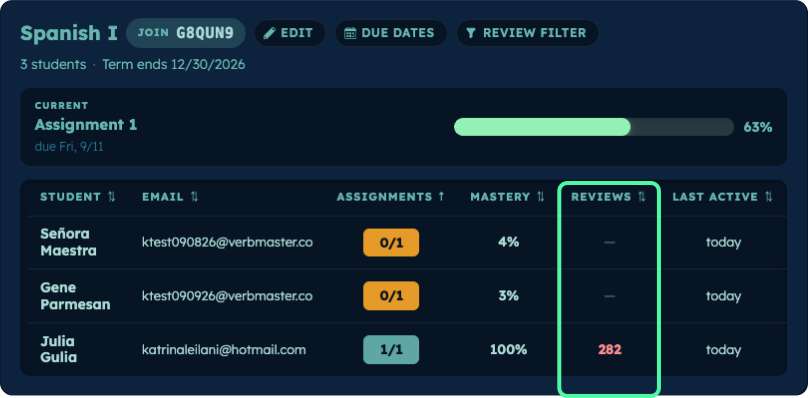
The REVIEWS column on your class dashboard shows how many each student currently owes, so you can scan the whole class at once.
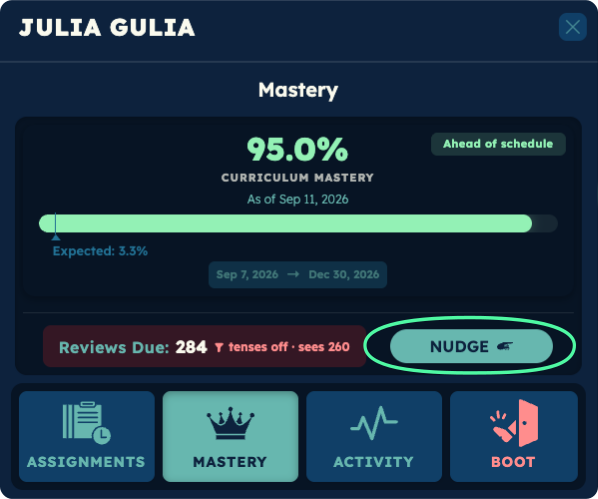
Opening a student's Mastery tab shows their Reviews Due count, along with a NUDGE button to prompt them.
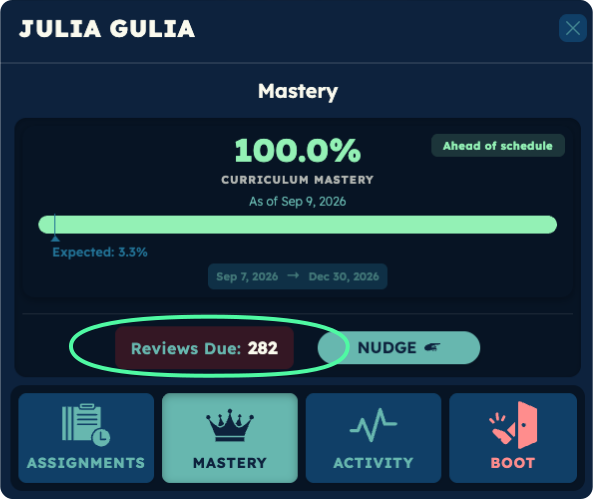
Either way, the goal is to keep that number as low as possible.
If students ignore their Mastery Questions, they pile up.
Build time and structure into your class to keep them on track.

Consider occasionally giving them a full class period to catch up.

More independence is expected, but you can still support success by creating space for reviews.

Host a weekly or biweekly "Mastery Hour": throw on some music, open your classroom, and let students focus on knocking out a backlog of Mastery Questions. It's a simple move, but it sends a powerful message:

These reviews matter. This is part of the path to fluency.
Creating a regular, low-stress time for reviews shows students you value the process, and makes it easier for them to stay on track.
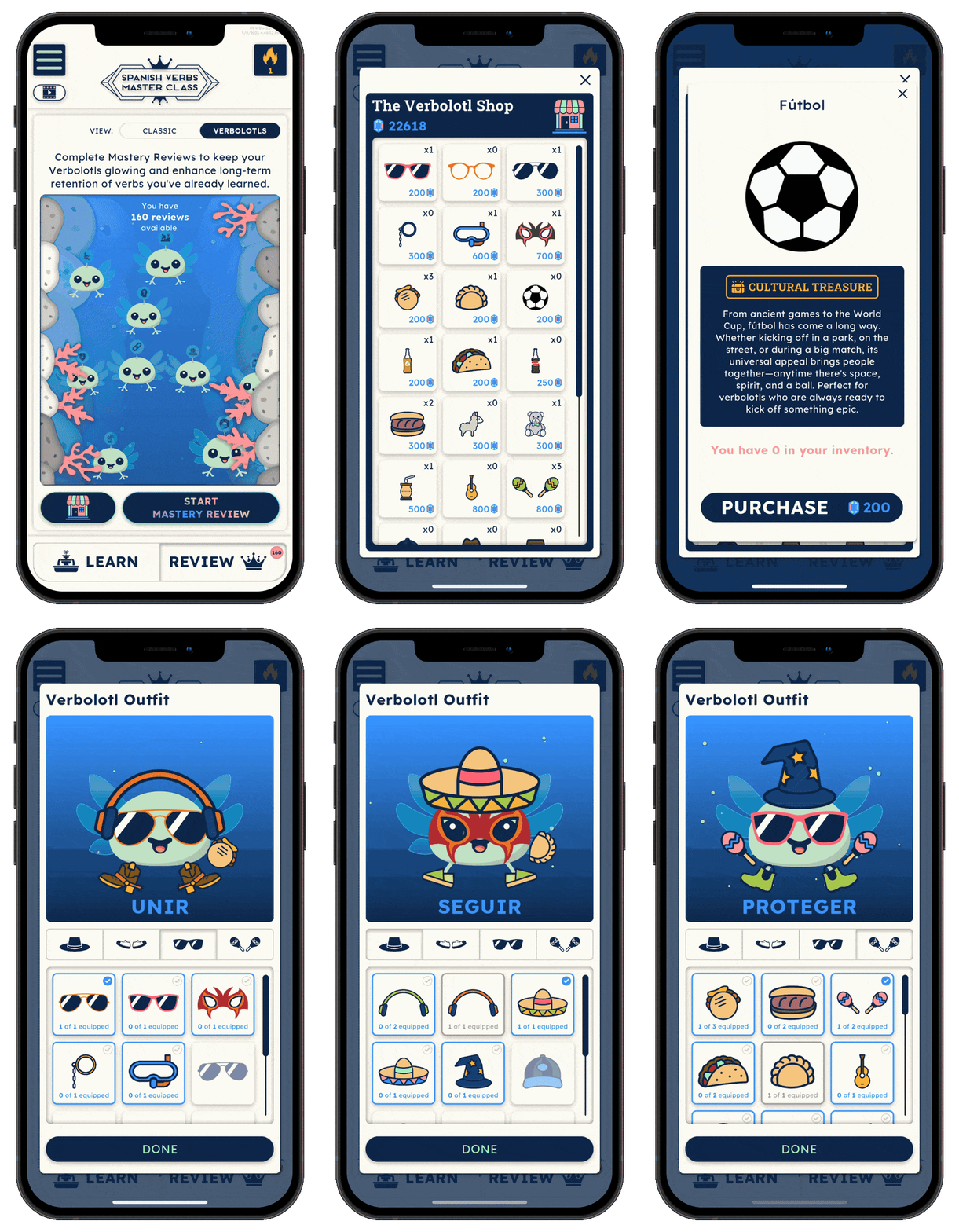
Verbolotls make review progress visible and motivating. Every time students learn a new verb, they hatch a Verbolotl, a digital companion that grows and glows as they continue to practice.
These Verbolotls tap into three powerful motivators:

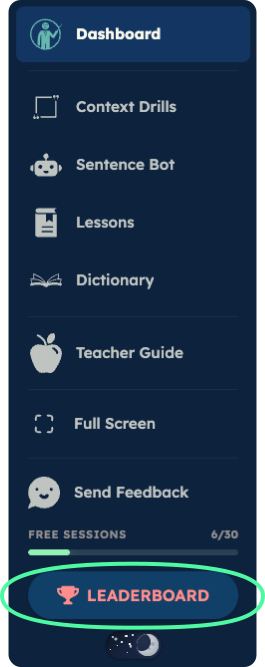
Open LEADERBOARD from the side menu. Leaderboards run on study points, the same points students spend dressing their Verbolotls.
Students earn them two ways:
The two habits that earn the most points are also the two that matter most:
Leaderboards reset every Sunday night, giving students a fresh chance to climb the ranks.
Top students and classes earn a place in the Leaderboard History each week, along with bragging rights, eternal glory, and maybe even a handshake from the teacher.
Leaderboards open on all of your classes, ranked by average study points. Use the date dropdown to look back at previous weeks.
This turns it into a team sport. Every student lifts their class's average, so they start pushing each other. Consider a prize for the class that wins most often.
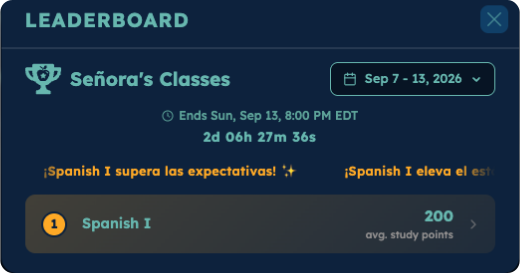
Tap a class to see its students ranked from most study points to fewest.
Small rewards go a long way for students who keep showing up at the top: extra credit, a place of honor, a sticker.
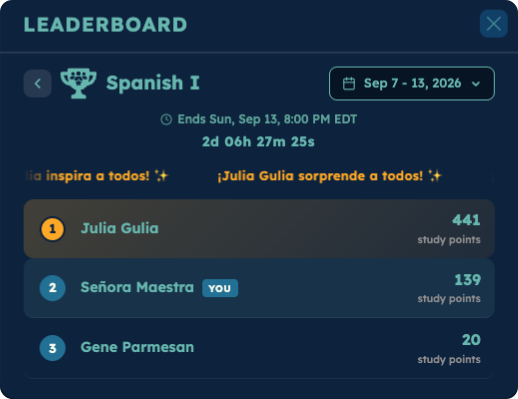
Students mirror your energy. Bring excitement to the Leaderboards with playful banter, public shout-outs, and small weekly rewards. Consistency keeps motivation high and makes the competition fun.
Whether you already have a leaderboard tradition that works or you're looking for ideas to start one, write to us at teachers@verbmaster.co. We can send stickers, prize ideas, and challenges to post, and we always want to hear what's working in your classroom.
VerbMaster automatically sends reminders when students have assignments due, but let's be honest, sometimes they need a little extra push from you.
That's where Nudges come in.
From your Teacher Dashboard, you can send custom notifications to students, even if their app is closed. They'll see the full message when they open VerbMaster.
Tapping a NUDGE button drafts the message for you. Pick a tone, regenerate it if you want a different take, then send.
And yes… it does make a difference.
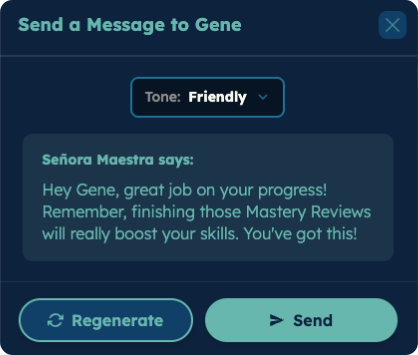
Nudge buttons sit in the two places you're already looking when you notice a student falling behind.
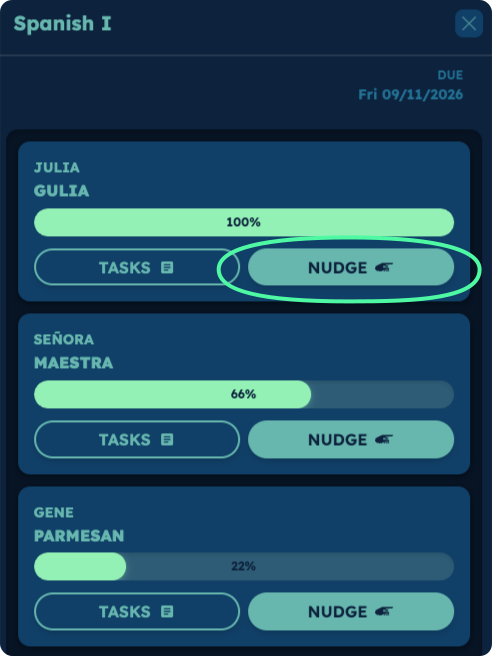
Click the current assignment on your class dashboard to see how far each student has got. Every student has a NUDGE button beside their progress bar.
The message it writes is about finishing that assignment.
Click a student row, then open their Mastery tab. The NUDGE button sits right next to their Reviews Due count.
Use this one when that number has crept up.
Have a nudge tone you wish existed, or a message that lands well with your students? Write to us at teachers@verbmaster.co. We'd like to hear it.